
Veeam
Use RustFS as an S3-compatible backup repository for Veeam Backup & Replication, back up an entire computer, and restore files from the stored backup.
Veeam Backup & Replication (VBR) is an enterprise backup platform that stores backup data in S3-compatible object storage. This guide shows how to register RustFS as a VBR object storage repository, back up an entire Windows computer with the Veeam Agent, and restore a file from the stored backup.
You need a running RustFS instance reachable over HTTPS, a bucket dedicated to backups, a Windows machine with VBR 13 installed (4 vCPU and 8 GB RAM are a practical minimum), and a Veeam license that includes object storage backup.
License requirement
Backup to object storage is an Enterprise-tier Veeam feature. VBR Community Edition can add and validate an S3 repository, but running a backup job to it requires an Enterprise license or the free 30-day evaluation key (Veeam Data Platform Trial Key).
Architecture
Veeam writes roughly 1 MiB backup blocks into the bucket through the S3 API during backup and reads back only the blocks that contain the requested data during a restore. The bucket prefix in this guide is veeam, and the bucket is veeam-repo.
Prepare the bucket and credentials
Create a dedicated bucket with versioning and Object Lock enabled. Versioning is a prerequisite for the Object Lock that Veeam immutability relies on:
rc bucket create <your-alias>/veeam-repo --with-lock
rc bucket version info <your-alias>/veeam-repo
Create a least-privilege policy scoped to the bucket. The policy intentionally omits s3:CreateBucket: Veeam offers automatic bucket provisioning, and declining it is the recommended posture when the bucket already exists.
{
  "Version": "2012-10-17",
  "Statement": [
    {
      "Effect": "Allow",
      "Action": ["s3:GetObject","s3:PutObject","s3:DeleteObject",
                 "s3:GetObjectVersion","s3:DeleteObjectVersion",
                 "s3:AbortMultipartUpload","s3:ListMultipartUploadParts",
                 "s3:ListBucketMultipartUploads",
                 "s3:PutObjectRetention","s3:GetObjectRetention",
                 "s3:PutObjectLegalHold","s3:GetObjectLegalHold",
                 "s3:BypassGovernanceRetention"],
      "Resource": ["arn:aws:s3:::veeam-repo/*"]
    },
    {
      "Effect": "Allow",
      "Action": ["s3:ListBucket","s3:ListBucketVersions","s3:GetBucketLocation",
                 "s3:GetBucketVersioning"],
      "Resource": ["arn:aws:s3:::veeam-repo"]
    }
  ]
}rc admin policy create <your-alias> veeam-repo-rw <path-to-policy-file>
rc admin user add <your-alias> veeam <your-secret-key>
rc admin policy attach <your-alias> veeam-repo-rw --user veeamVeeam requires HTTPS for object storage. Terminate TLS in front of RustFS (for example with Traefik or Nginx) using a certificate whose SAN covers the endpoint hostname, and import that certificate into the Veeam server's Trusted Root Certification Authorities store.
Add the RustFS repository in VBR
In the VBR console, go to Backup Infrastructure → Backup Repositories → Add Repository → Object storage → S3 Compatible:
- Service point: your RustFS HTTPS endpoint, Region:
us-east-1. - Credentials: the
veeamaccess key and secret key. - Bucket:
veeam-repo, Folder:veeam. - Optionally enable Make backups immutable (the bucket's Object Lock is already enabled).
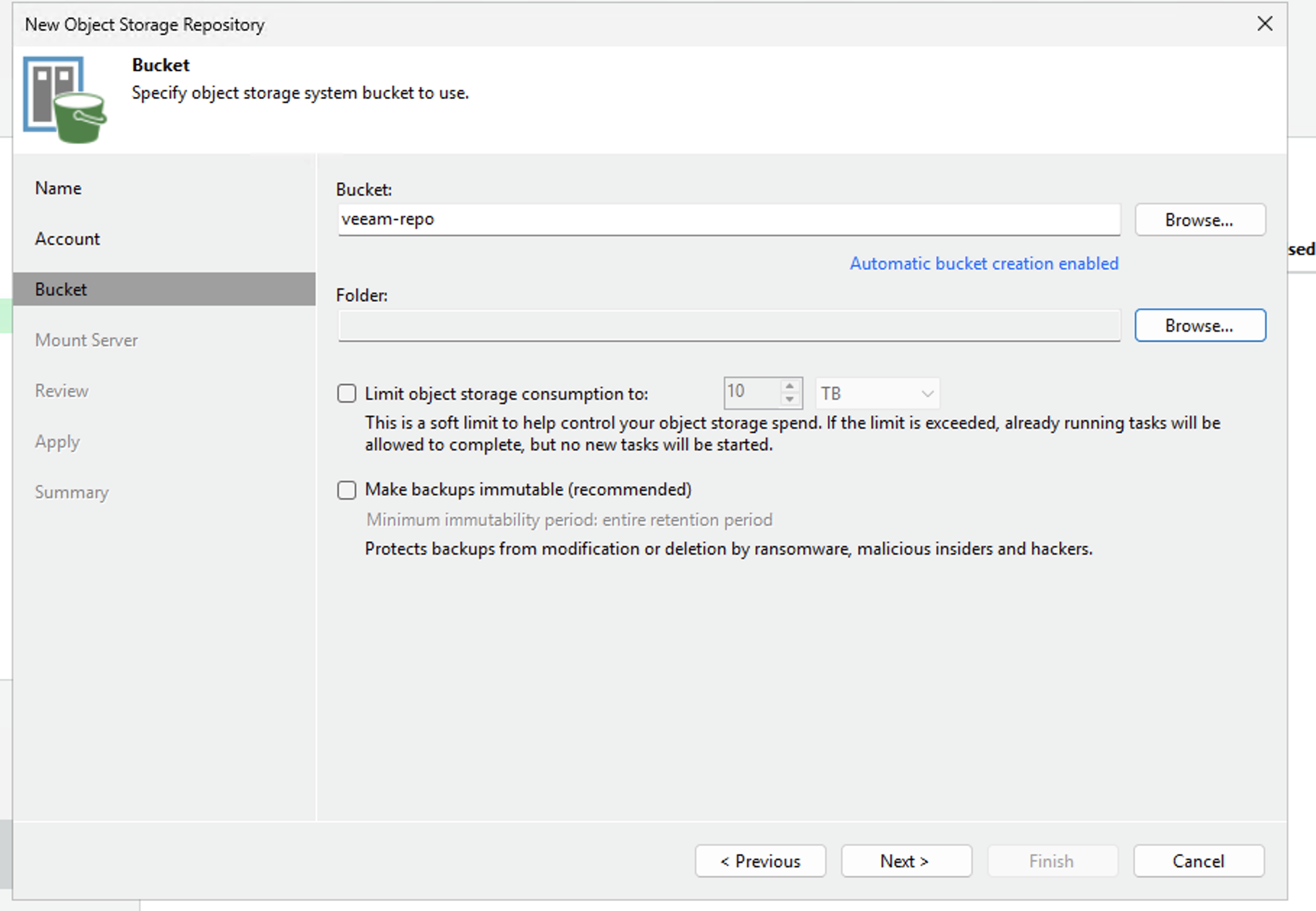
When Veeam reports that automatic bucket provisioning fails with Access Denied, choose Yes to disable it and proceed — the bucket exists and the IAM user intentionally cannot create buckets.
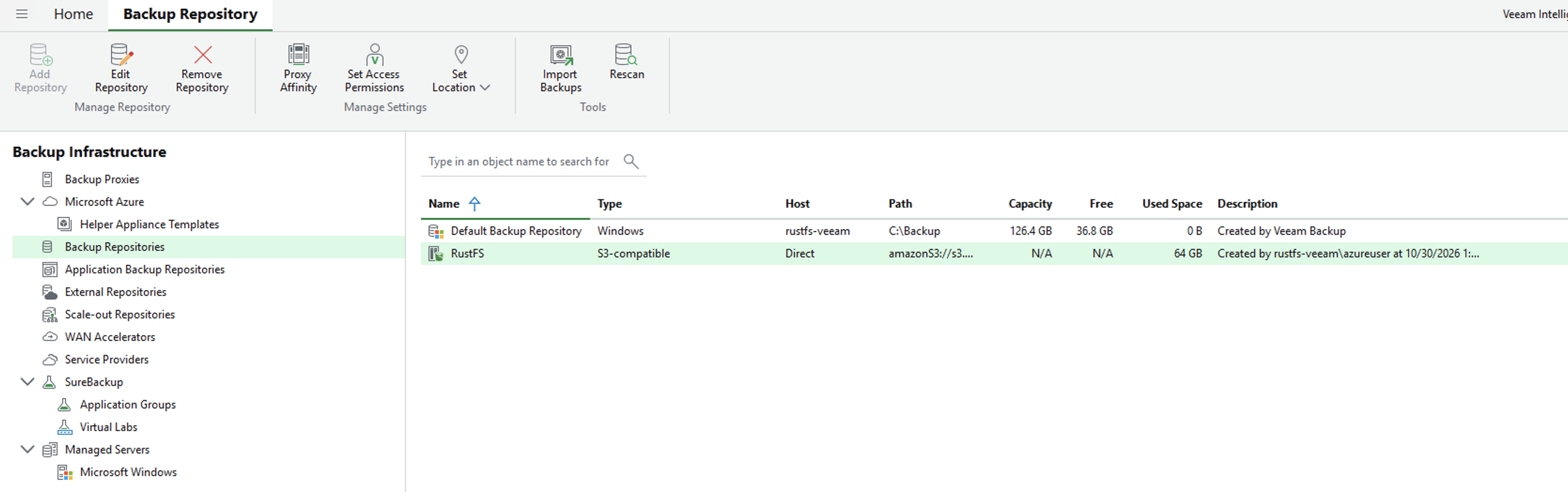
On success, the repository is listed as S3-compatible with the used space matching the bucket contents:
Enroll the protected computer
The backup job alone does not install the Veeam agent. Use a protection group:
- Inventory → Physical and Cloud Infrastructure → Add protection group…
- Type Individual computers, add the machine with its real hostname and local administrator credentials in
HOSTNAME\userform. - Keep Install Veeam Backup & Replication Agent enabled, then Apply.
Windows UAC
If the agent push fails with an access error, set LocalAccountTokenFilterPolicy to 1 under HKLM\SOFTWARE\Microsoft\Windows\CurrentVersion\Policies\System on the target machine and rescan. After the agent installs, reboot the machine when the Backup agent column shows Reboot required.
Run the backup job
- Home → Backup Job → Windows computer…
- Computers: From protection group, Backup Mode: Entire computer.
- Storage: Backup repository = RustFS, retention as needed.
- Finish, then right-click the job and select Start.
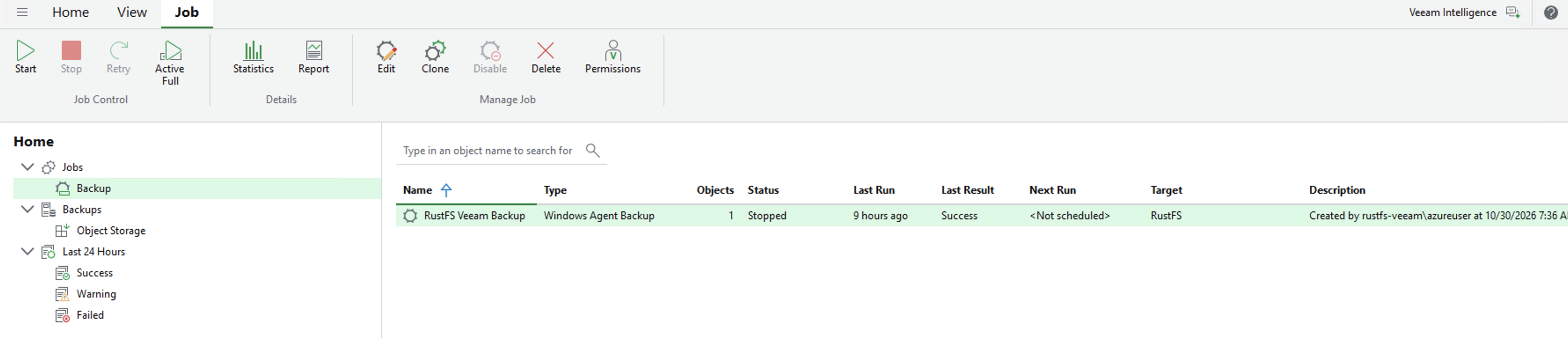
After the job completes, the job list shows Last Result: Success and the restore point appears under Home → Backups → Object Storage → RustFS Veeam Backup:
Verify the objects in RustFS:
rc object find <your-alias>/veeam-repo/ | tail -1Veeam stores roughly 1 MiB data blocks under Veeam/Backup/veeam/Clients/{agent-id}/… with an ETag and a version on every object.
Restore files
- Home → Backups → Object Storage → RustFS Veeam Backup → .
- Right-click the restore point → Restore guest files… → Browse.
- Pick a file in the Backup Browser, restore it to a target folder, and verify its content.
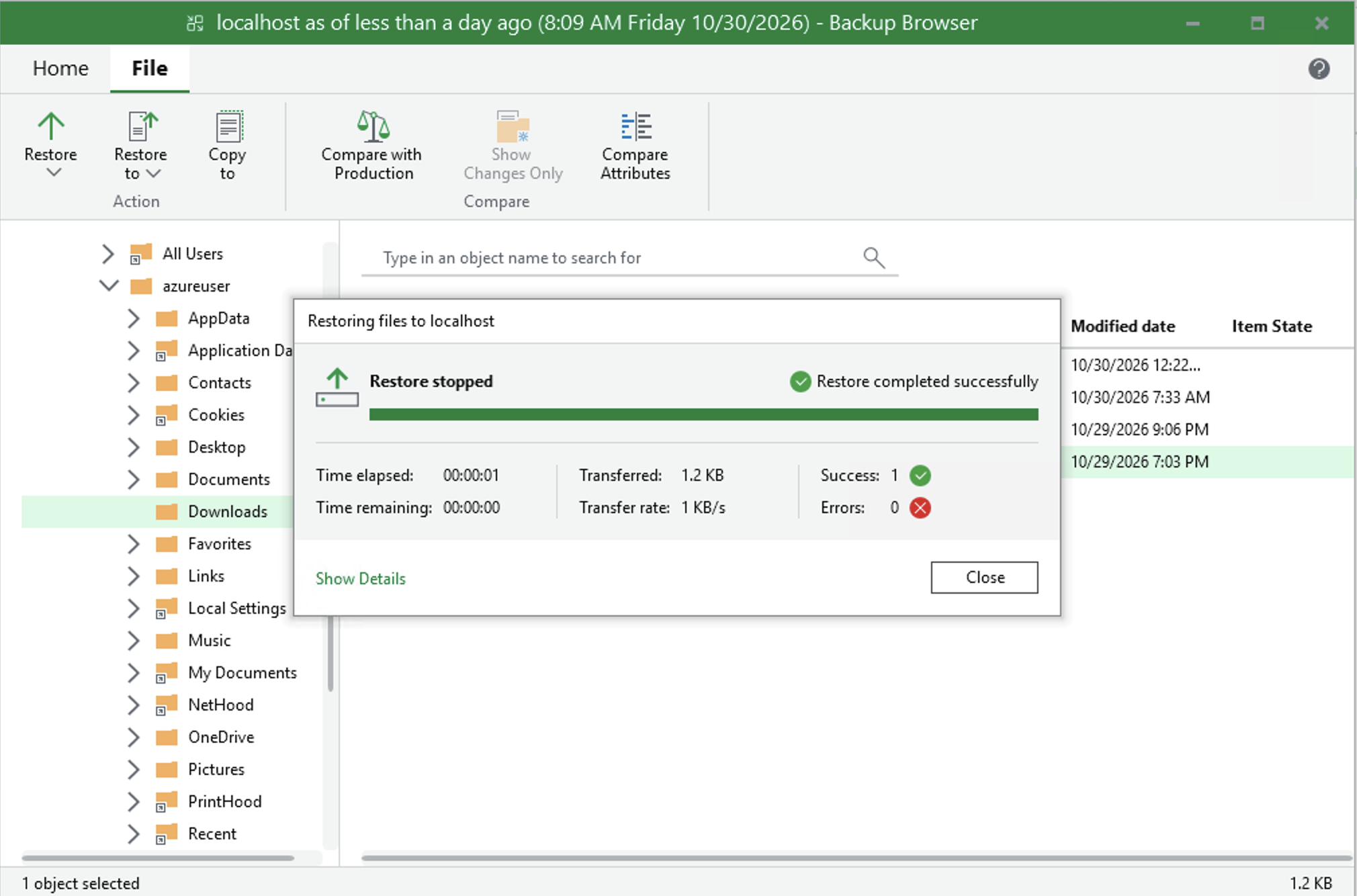
Restoring reads back only the blocks containing the selected file, which validates the full read path against RustFS.
Troubleshooting
| Symptom | Fix |
|---|---|
| "Backup to object storage requires a valid Enterprise edition license" | Install a license that includes object storage (trial or paid); Community Edition cannot run object storage jobs |
| "backup agent is missing" during the job | Enroll the machine through a protection group (step 3); the job wizard does not push-install agents |
| Agent push fails with access denied | Set LocalAccountTokenFilterPolicy=1 on the target; use the real hostname, not localhost |
| Backup agent column shows "Reboot required" | Reboot the machine to complete the agent installation |
| Console shows HTTP 502 right after boot | Veeam services are still starting; retry after VeeamBackupSvc and the PostgreSQL service are Running |
| Folder list is empty in the wizard | The folder picker lists existing prefixes; create a placeholder object under the prefix first, then Browse |
| Repository capacity shows N/A | SOSAPI reporting is not required for backup; support is tracked in rustfs#1511 |